Getting Started
This guide takes you from a fresh installation to a small, verified folder layout. The safest approach is to start manually, verify the runtime pages, create a backup, and then add automation.
Go to Settings -> FolderView Plus in the Unraid webGUI.
The Settings page has two modes:
- Basic is for creating, finding, ordering, importing, exporting, and deleting Docker and VM folders.
- Advanced opens the Automation, Rules, Recovery, Operations, Start Order, Appearance, and Diagnostics workspaces.
Everyday preference changes save automatically. Imports, restores, bulk changes, and destructive operations provide previews or confirmations because they can replace or remove data.
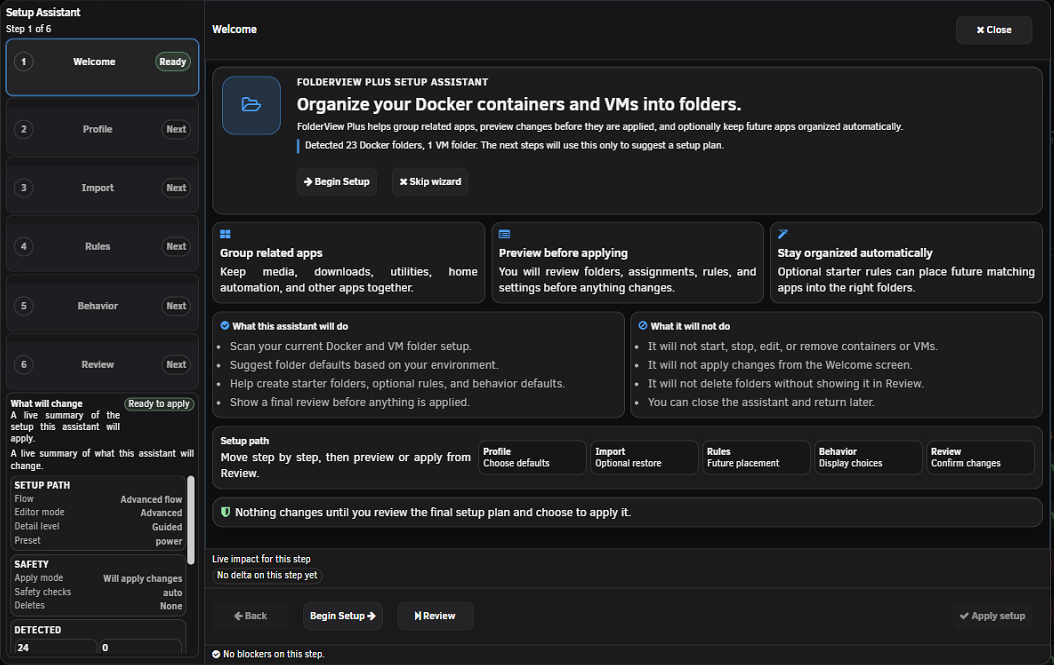
Select Setup Assistant. It detects whether you already have folder data, offers Guided or Expert detail, previews the plan, and waits for approval before applying changes. See Setup Assistant.
- Stay in Basic mode.
- In Docker or VMs, select Add folder.
- Enter a unique name, choose an icon, and select members.
- Review the editor preview and save.
- Repeat for your main groups.
Good starter folders include Media, Network, Home Automation, Databases, Development, and Test VMs. Use names that describe a purpose rather than a particular host path.
Open each relevant surface:
- Docker: confirm containers appear under the intended folders. Use the View menu to compare FolderView with Host list.
- VMs: confirm VM membership, order, and actions.
- Dashboard: confirm the same Docker and VM folders appear in their widgets.
Expand and collapse every new folder. If you use nested folders, verify both direct members and child folders. Runtime pages are the final behavior check; the folder editor preview is a design preview.
The default Standard performance profile is appropriate for small and normal installations. Adaptive is recommended when the server has many folders or members because it increases safeguards based on workload. Maximum performance reduces motion and defers more preview work for very large installations.
Profiles affect presentation and refresh work. They do not delete members or disable saved folder configuration.
Open Advanced -> Recovery and create a manual Docker and/or VM snapshot. Download an export outside the Unraid flash device before a major reorganization or uninstall.
- Use Bulk Assignment for a one-time large move.
- Use Auto-Rules for ongoing organization.
- Use Saved folder templates to reuse folder settings.
- Configure Docker Start Order only after visible folder order is correct.
- Enable Privacy before recording or sharing runtime screens.
- Stable or intended dev branch is installed.
- Docker and VM folders load in Settings.
- Runtime pages show the same membership and hierarchy.
- Collapsed previews and folder actions behave as expected.
- A manual backup and an external export exist.
- Browser console has no new FolderView Plus errors.
- Advanced automation remains preview-first.
Next: Folder Management · Settings Reference · Troubleshooting